Image Tray: Collect Your Best Generations and Send Them Straight to Video Lab
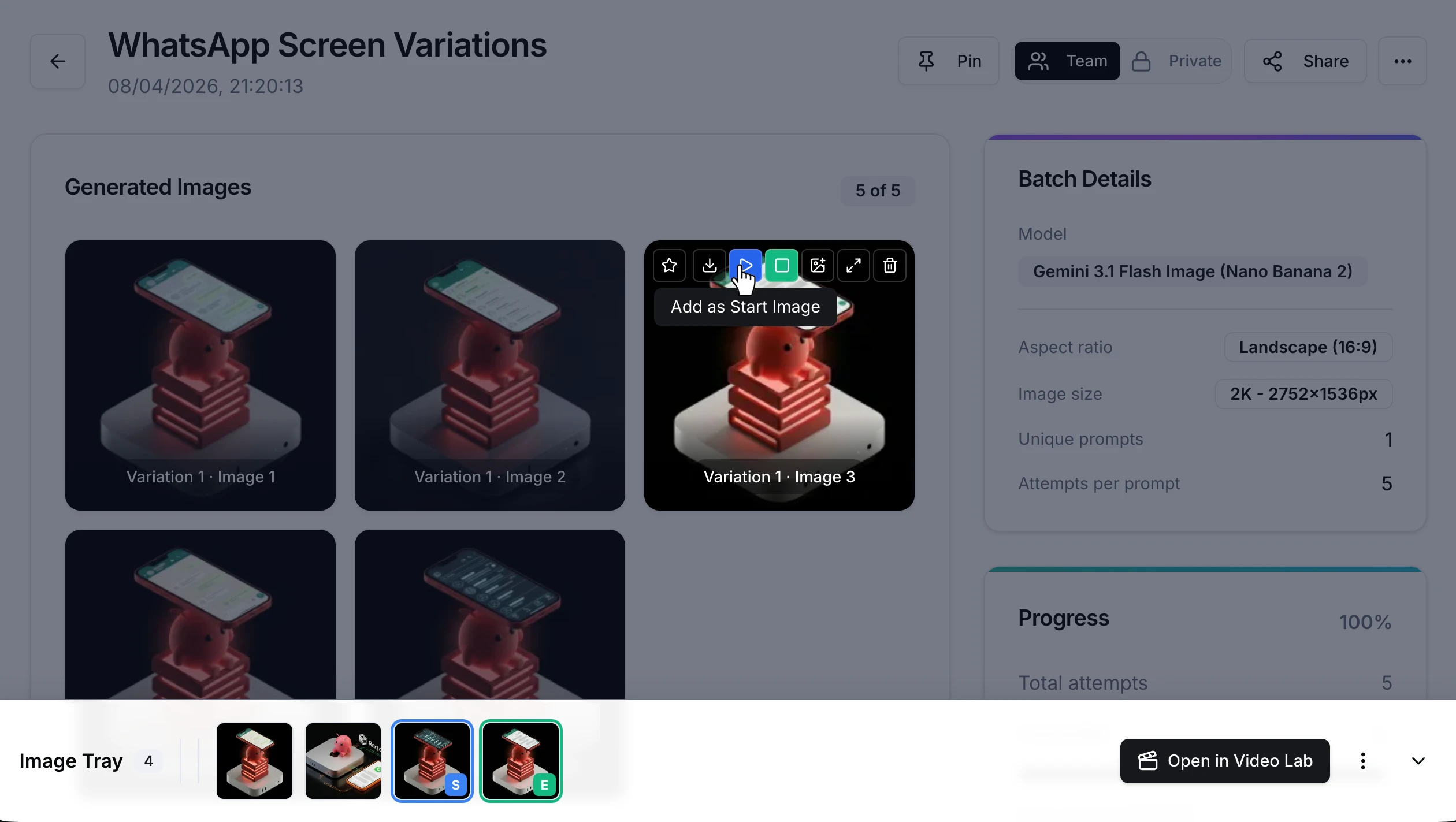
Image Tray makes the jump from image generation to video generation seamless. Pick your favourite AI-generated images straight into a persistent tray, assign start and end frame roles, and send them to Video Lab with one click.
How it works
When you are viewing generated images in AI Image Lab, each output has action buttons in the toolbar. Click the play icon to add an image as a start frame, or the square icon for an end frame. The image drops into a persistent tray at the bottom of your screen.
Once you have your frames selected, hit Open in Video Lab. Your images arrive in Video Lab with the correct roles already assigned, ready to generate.
Key features
- Collect up to 20 images. Browse multiple batches and cherry-pick from each. The tray persists across pages.
- Assign start and end roles. Tap a thumbnail to set it as the start or end frame. Only one image per role, so swapping is instant.
- Preview full-size. Click any thumbnail for a lightbox preview before committing.
- One-click handoff. Send your role-assigned images straight into Video Lab with the correct slots pre-filled.
- Collapse or clear. Minimise the tray to a badge in the corner, or clear everything and start fresh.
Getting started
Open AI Image Lab, generate or open a batch, and use the toolbar buttons to add your favourites to the tray. Select your start and end frames, click Open in Video Lab, and you are ready to go.
Image Tray is available now on all plans. It is a workflow feature with no additional AI usage required. Start your free trial. No credit card required.