AI Image Lab Enhancement: Point, Draw, and Direct Your AI Generations
AI Image Lab already lets you attach reference images to guide generation. Image markers take that further: draw coloured blocks, add text labels, trace lines, or paint masks directly onto a reference image so the model knows exactly what to change and where.
The problem with text-only prompts
You upload a photograph and write "replace the car with a sports car". The AI picks a car at random, or replaces the wrong one, or transforms the entire scene. Text alone cannot point at a specific region of an image.
Image markers solve this by letting you annotate the reference image before generation. Each marker acts as a spatial anchor that connects a region of the image to part of your prompt.
How it works
Upload a reference image in AI Image Lab and click the edit button to open the marker editor. Five tools are available:
- Text: Place a label directly on the image to name regions or add instructions that the model can read.
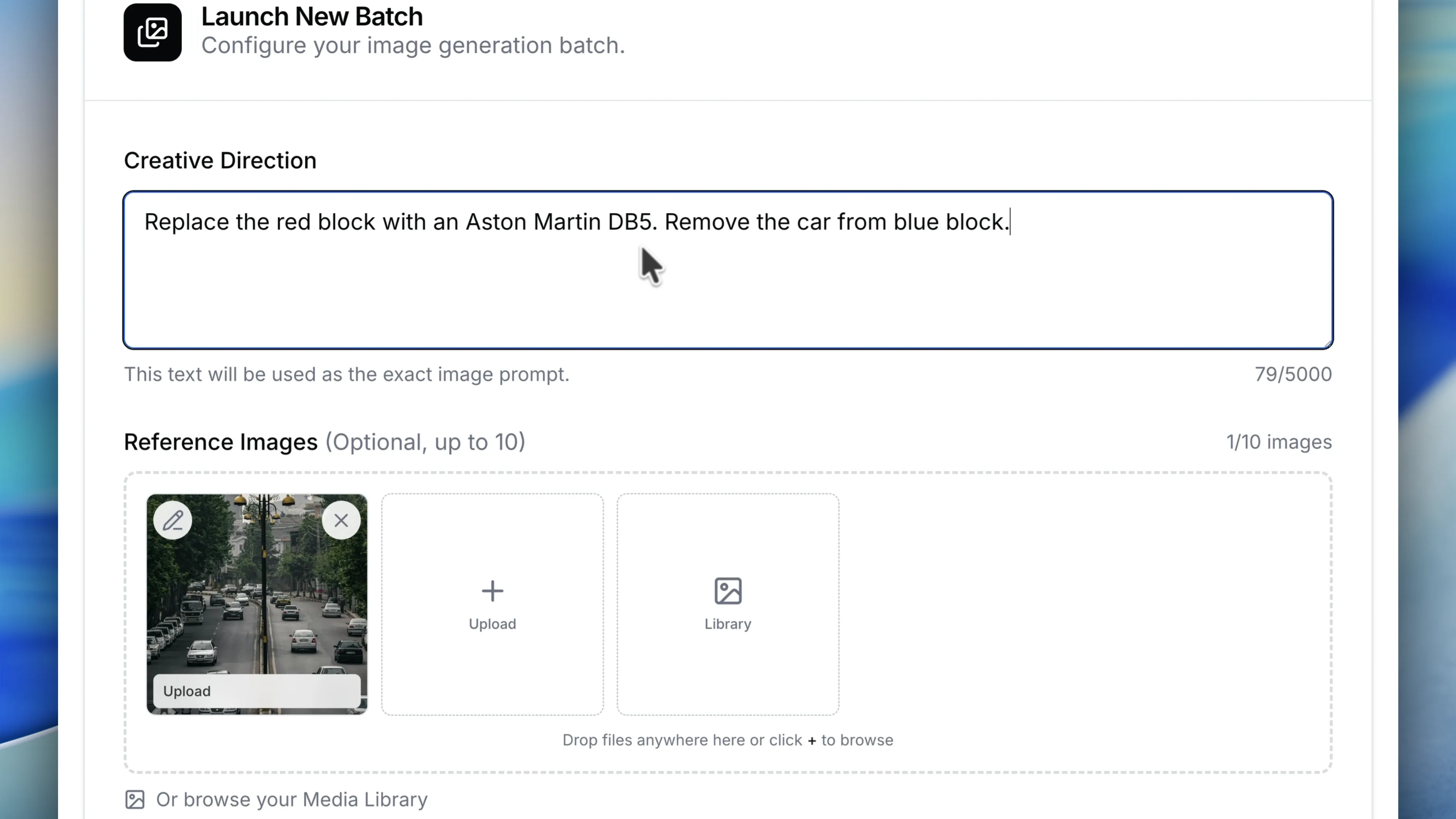
- Block: Draw a coloured rectangle over an area. Reference it by colour in your prompt: "replace the red block with an Aston Martin DB5".
- Line: Trace a path to indicate direction, boundaries, or alignment.
- Mask: Paint a filled shape to highlight irregular regions for the model to focus on or ignore.
- Clear Canvas: Remove all markers and start fresh.
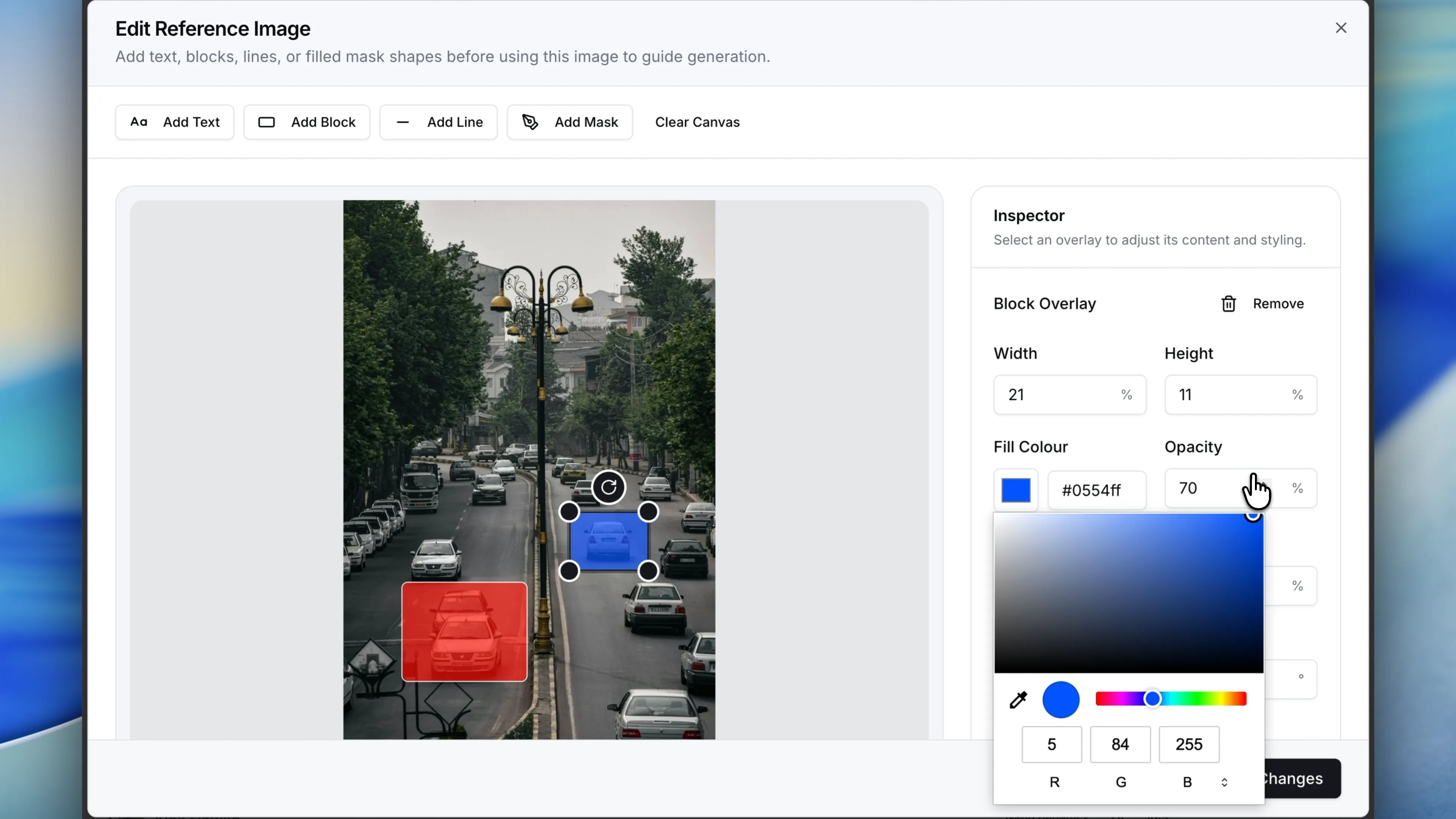
Each marker has adjustable colour, opacity, and size via the inspector panel. Use different colours for different instructions so the model knows which prompt fragment applies to which area.
Precision editing, not guesswork
Because the model receives the annotated image alongside your text prompt, it understands spatial intent. "Replace the red block" is unambiguous when there is a visible red rectangle sitting on the bonnet of one specific car. "Remove the car from blue block" targets exactly the region highlighted in blue.
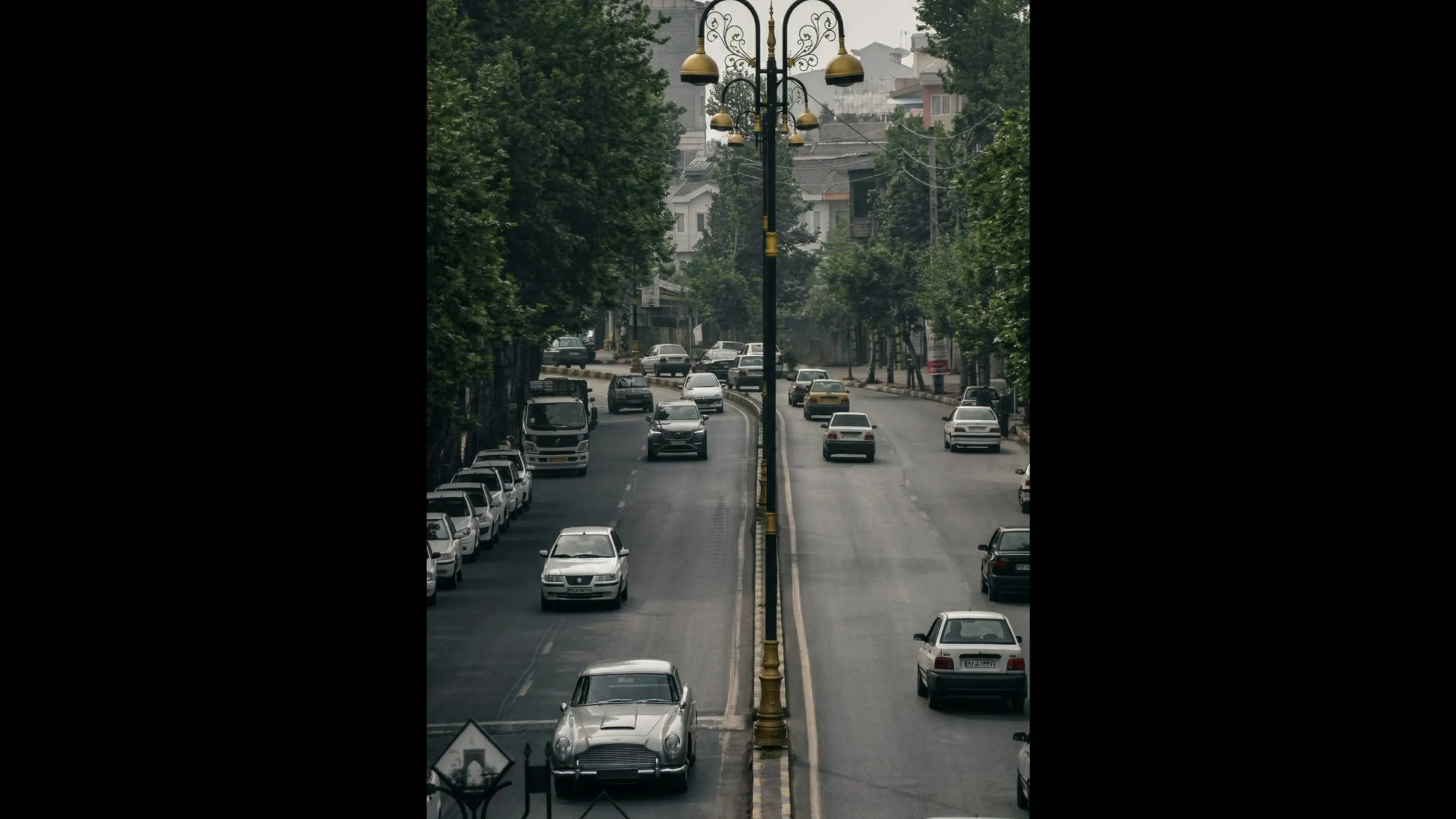
This works across all models that support reference images. No special syntax, no coordinate systems, no external masking tools. Draw on the image, describe what you want, and generate.
When to use markers
- Object replacement: Mark what to swap out and describe the replacement in your prompt.
- Object removal: Highlight unwanted elements for the model to remove cleanly.
- Composition guidance: Place blocks where you want new elements to appear, controlling layout before generation.
- Region-specific styling: Apply different styles or transformations to different parts of the same image.
- Multi-edit batches: Combine several marker colours with a multi-part prompt to make multiple changes in a single generation.
- People replacement: Set a block to 100% opacity over a person and the model has no trace of the original face or body. It has to rely entirely on your prompt and any other reference images you provide, which means clean, unbiased replacements every time.
Get started
Start your free trial. No credit card required. Open AI Image Lab, upload a reference image, and click the edit button to start placing markers.